TLKey Takeaway
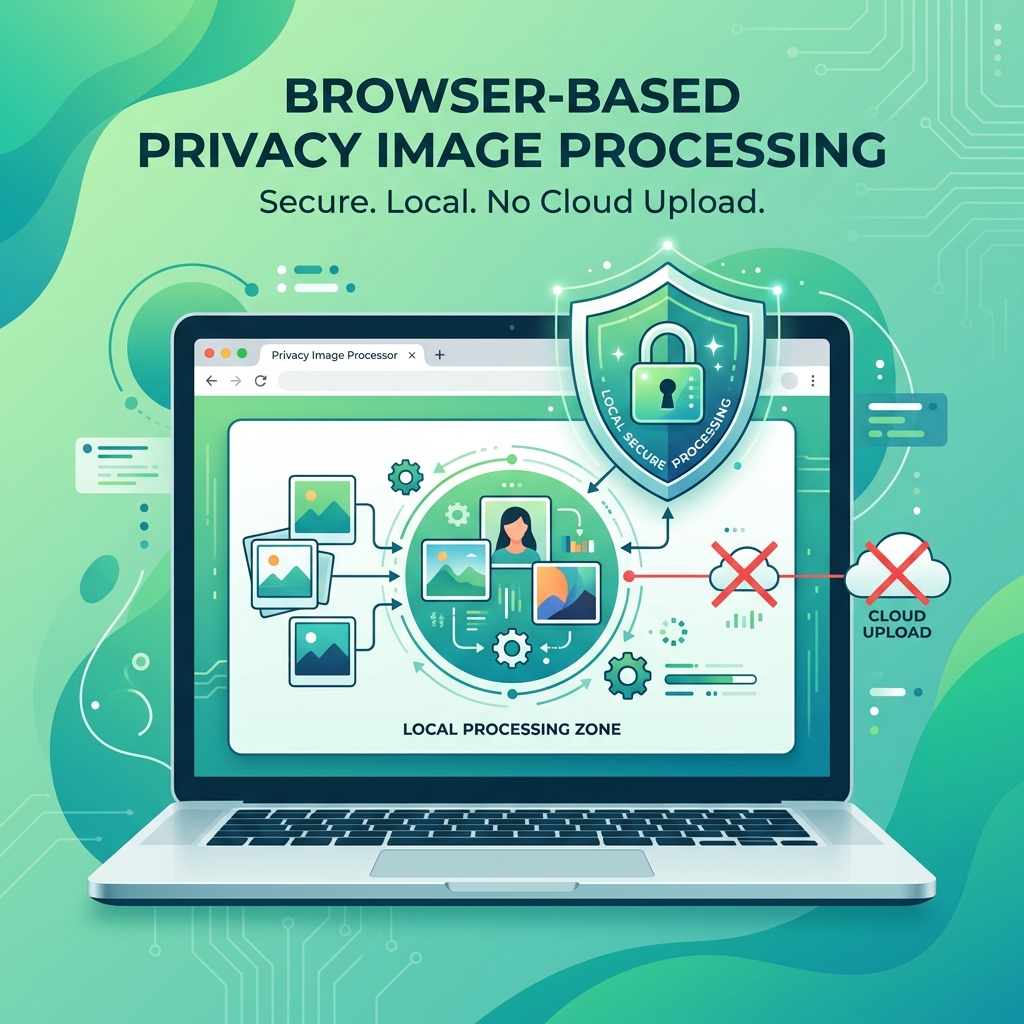
To blur faces in photos for privacy, upload the image to a browser-based blur tool, select the face area with a region selector, adjust blur intensity, and download the result. No server upload needed — processing happens entirely in your browser.
Why Blur Faces in Photos?
Legal reasons: GDPR compliance, minors' privacy, witness protection.
Practical reasons: Group photos without consent, marketplace listings with bystanders, street photography, real estate photos.
How to Blur Faces Online
- Open minifypic.com/blur-tool/face-blur
- Upload your photo
- Draw a rectangle or circle over the face
- Adjust blur intensity (subtle gaussian → heavy pixelation)
- Repeat for additional faces or areas
- Download
Privacy advantage: MinifyPic processes everything in your browser. The unblurred photo never leaves your device.
Types of Blur Effects
| Effect | Description | Best For |
|---|---|---|
| Gaussian Blur | Smooth, natural blur | Background blurring |
| Pixelation | Mosaic/block effect | Maximum anonymization |
| Heavy Blur | Extreme gaussian | Making faces unrecognizable |
> Important: Light gaussian blur can sometimes be reversed by AI. For serious privacy, use heavy pixelation — it destroys the underlying data permanently.
Tips for Effective Blurring
- Cover generously — Blur entire face, not just eyes
- Check at full resolution — Zoom to 100% to verify
- Remove EXIF data too — Use Metadata Remover after blurring
- Use pixelation for maximum privacy — Cannot be reversed
- Check reflections — Windows, mirrors, sunglasses
FAQ
Q: Can blurred faces be unblurred? A: Light gaussian blur potentially yes. Heavy pixelation — no, the data is destroyed.
Q: Does this work on mobile? A: Yes. Touch and drag to select blur areas in any mobile browser.
Q: Can I blur license plates too? A: Yes. Use it to blur any sensitive area — plates, addresses, screens.